

This guide will show you how to remove or Ban Players in the Runescape Dragonwilds Server.
Click here to order your Runescape DragonWilds server with Citadel Servers today!
Running a RuneScape: Dragonwilds server means you’re not just hosting gameplay, you’re also responsible for keeping the community fair, safe, and enjoyable. Sometimes that requires taking action against disruptive players. Whether it’s removing someone temporarily with a kick or enforcing a permanent ban, knowing how to use these tools effectively is essential for server management. This guide will walk you through the process of removing or banning players, explain when each option is appropriate, and help you maintain a balanced environment where everyone can enjoy the game without interruption.
Managing Player Discipline on RuneScape: Dragonwilds Servers
(NOTE: Admin permissions are required to remove or ban players. If you don’t have them yet, learn how to add admins here.)

3. Navigate to the Commandline Manager section.
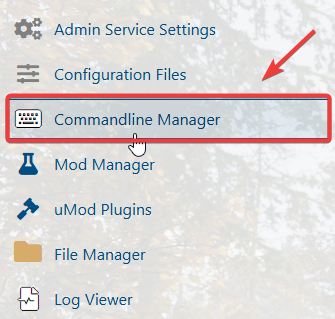
4. Copy the Admin Password from your server settings or control panel. You’ll need this password to grant admin permissions or perform administrative actions such as kicking or banning players.
5. Join the server using your game client
6. While in-game, press ESC to open the main menu, then select Settings to access your configuration options.
7. Navigate to the Server tab within the Settings menu to access and manage your server configuration options.
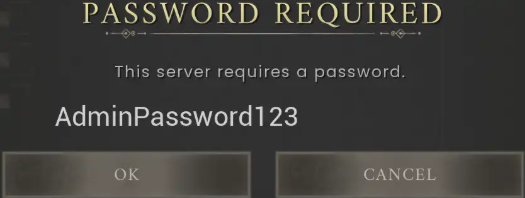
8. Paste the Admin Password you copied in Step 4 into the password field, then click OK to confirm and activate your admin permissions.
9. From the Settings menu, to kick a player, open the Social tab, select the player’s name from the list, and press Kick to remove them from the server.
10. From the Settings menu, to ban a player, go to the Social tab, select the player’s name from the list, and press Ban to permanently block them from accessing the server.
11. From the Settings menu, to unban a player, open the Social tab, select the player’s name from the banned list, and press Unban to restore their access to the server.
Please click here to contact our support via a ticket.