

This guide will show you how to export and Import Structures in the Soulmask Server
Looking to rent a Soulmask server? Click here to order your server now!
Exporting and importing structures in Soulmask lets you move your builds between worlds, back up your creations, or share them with friends and community members. Whether you're running a private server or managing a larger multiplayer environment, mastering the structure export and import process lets you preserve your best designs and streamline base building. This guide walks you through how the system works, why you might use it, and what to expect when transferring buildings across Soulmask servers.
Saving and Importing Buildings in Your Soulmask Server
1. Connect to your Soulmask server
2. Log in as an admin. Learn how to do this here.

3. Use the Tilde (~) key on your keyboard to access the console.
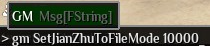
4. Run gm SetJianZhuToFileMode [Radius] to specify how far out from your character the game will include structures when exporting.
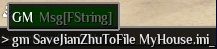
5. Position yourself by the target structure, then enter gm SaveJianZhuToFile [BuildingName].ini to export it.
6. Once you’re in the desired location, use gm LoadJianZhuFromFile 0 0 [BuildingName].ini to place the building.
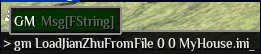
(NOTE: Building placement depends on your position at the time of saving, so it’s best to load the structure on terrain similar to where it was created.)
7. Run gm CuiHuiViewGongHuiJianZhuByRadius 1000 to delete every structure inside the defined radius if you need to correct a placement.

8. To delete a building file, log in to your Game Control Panel.
9. Go to the File Manager tab to manage exported and imported building data.
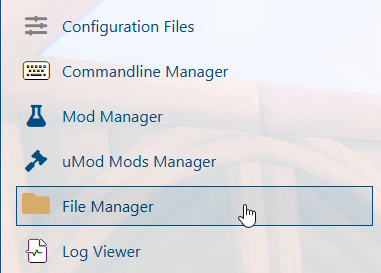
10. Navigate to /home/container/WS/Saved/ access your exported structure files.
11. Right‑click the [BuildingName].ini file and choose Delete to remove the saved structure.
Did the above information not work for you?
Please click here to contact our support via a ticket.