

This guide will show you how to upload your local save to your RuneScape: Dragonwilds server
Click here to order your Runescape DragonWilds server with Citadel Servers today
1. Log in to your Game Control Panel.
Stop your server first.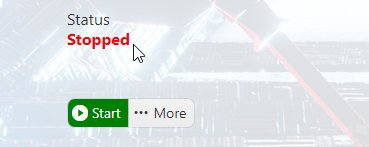
2. On your PC, navigate to the saved file location.
You can copy this command and run it in Windows Run(Win+R)
"%LocalAppData%\RSDragonwilds\Saved\SaveGames"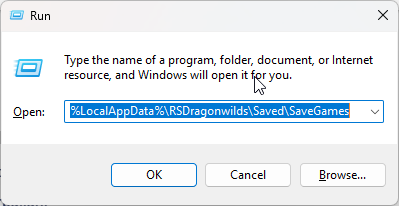
3. If you have multiple single-player worlds, then there will be multiple saves here.
Identify the world you want to continue. They will be named after the in-game world name.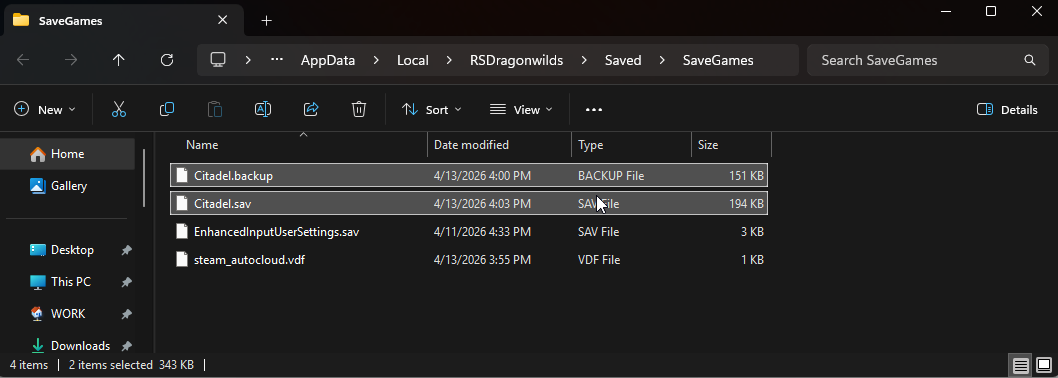
4. In the Control Panel page, open the File Manager and navigate to:
"<Home>/RSDragonwilds/Saved/SaveGames"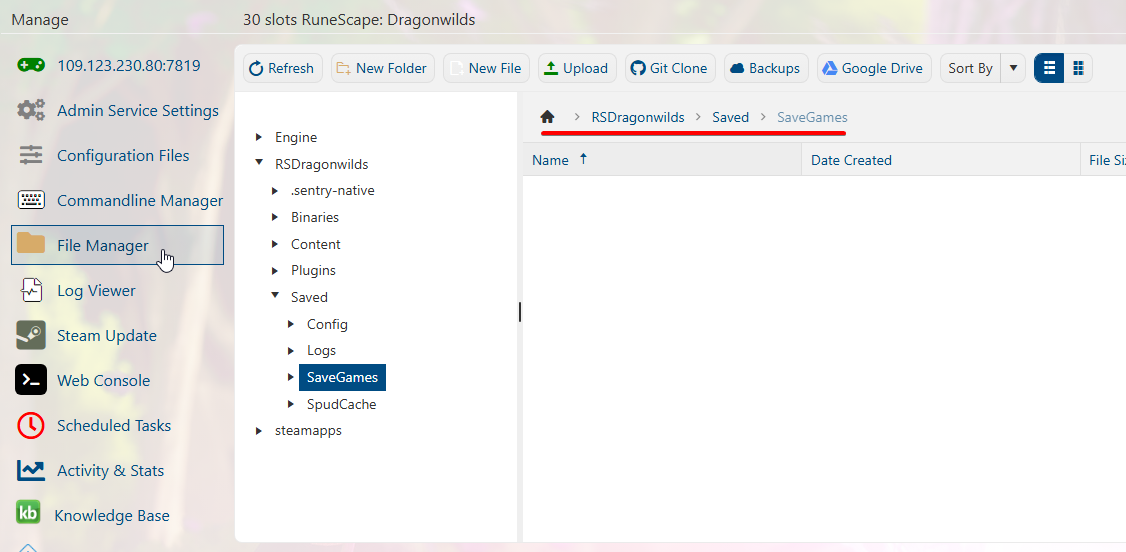
5. Once in the server's save folder, upload the save files from your PC.
You can either use the "Upload" button or drag and drop the files to upload them.
Be sure to upload both the .sav and .backup files of the world.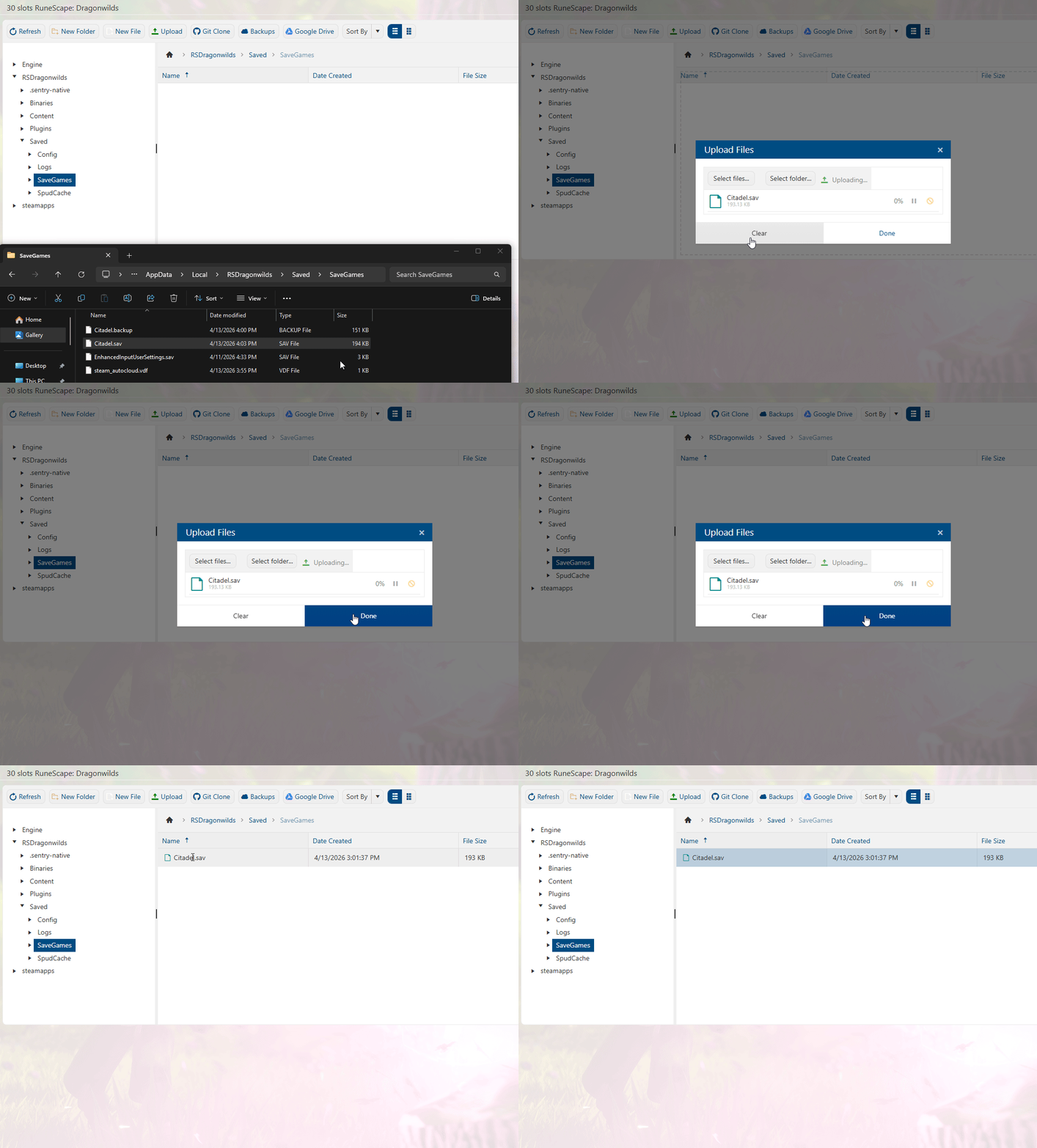
6. Once the files are uploaded to the server's File Manager, we will now set the server to load them.
Open the Configuration Files tab, click the "Text Editor" option for the main config.
Find the "DefaultWorldName" line and change its value to the name of the uploaded world.
Edit any other settings while we are here, then click Save.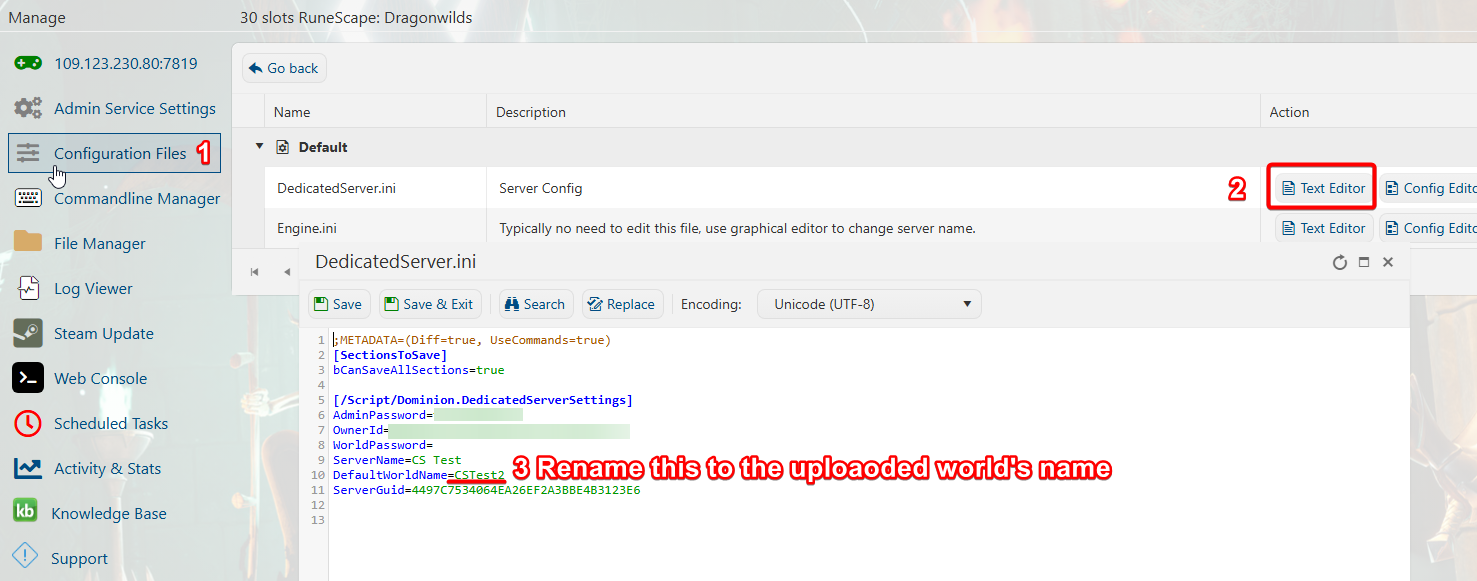
7. You can now start the server and continue your local save.
Did the above information not work for you?
Please click here to contact our support via a ticket.